














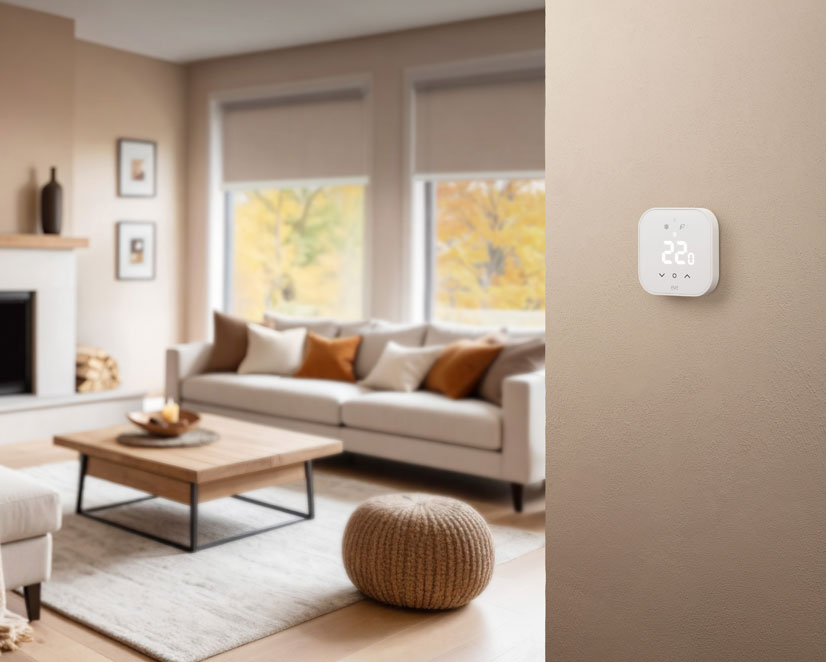
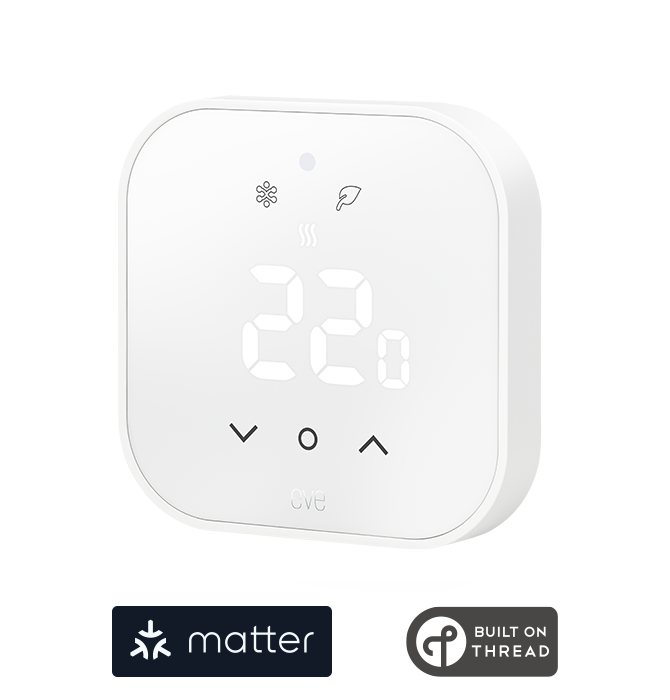
This is Eve Thermostat
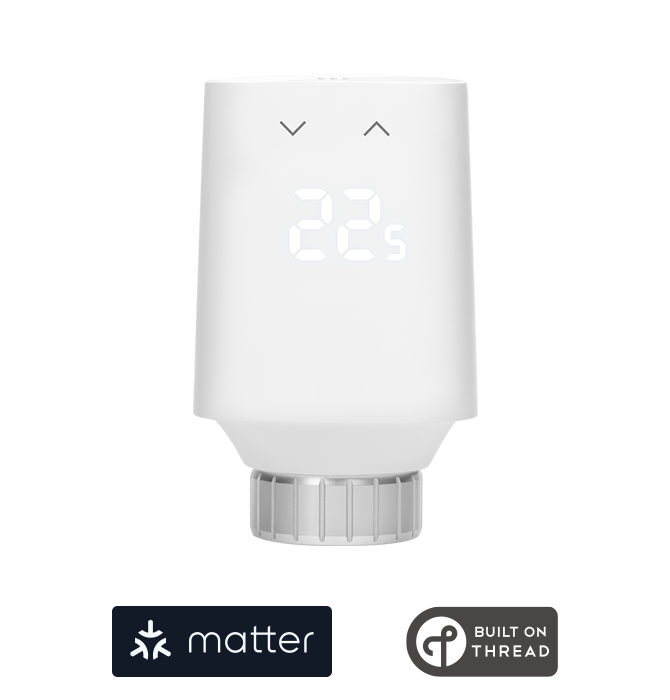
With its understated and sleek design, the Eve Thermostat blends seamlessly into any living space. The front panel features just five buttons, giving it a clean, uncluttered look in standby mode and making it easy to read and operate when active, thanks to its large display.
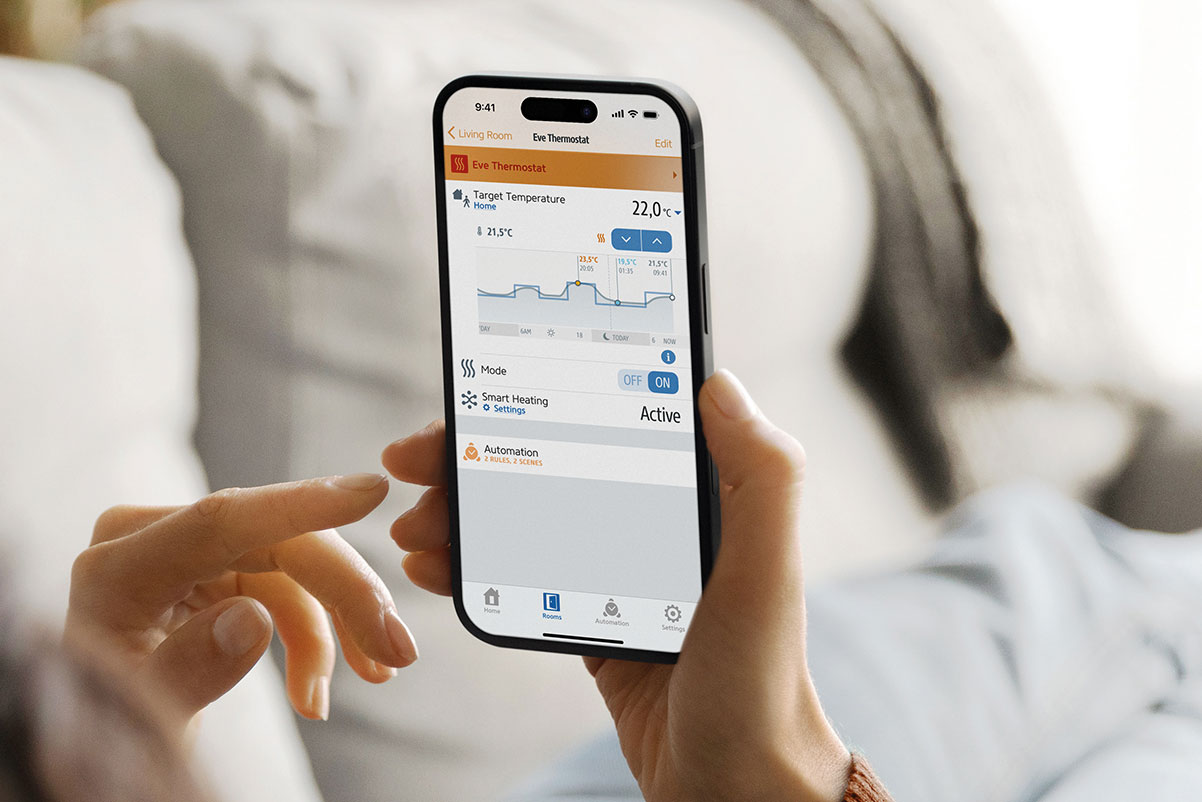
View and Adjust Room and Target Temperatures
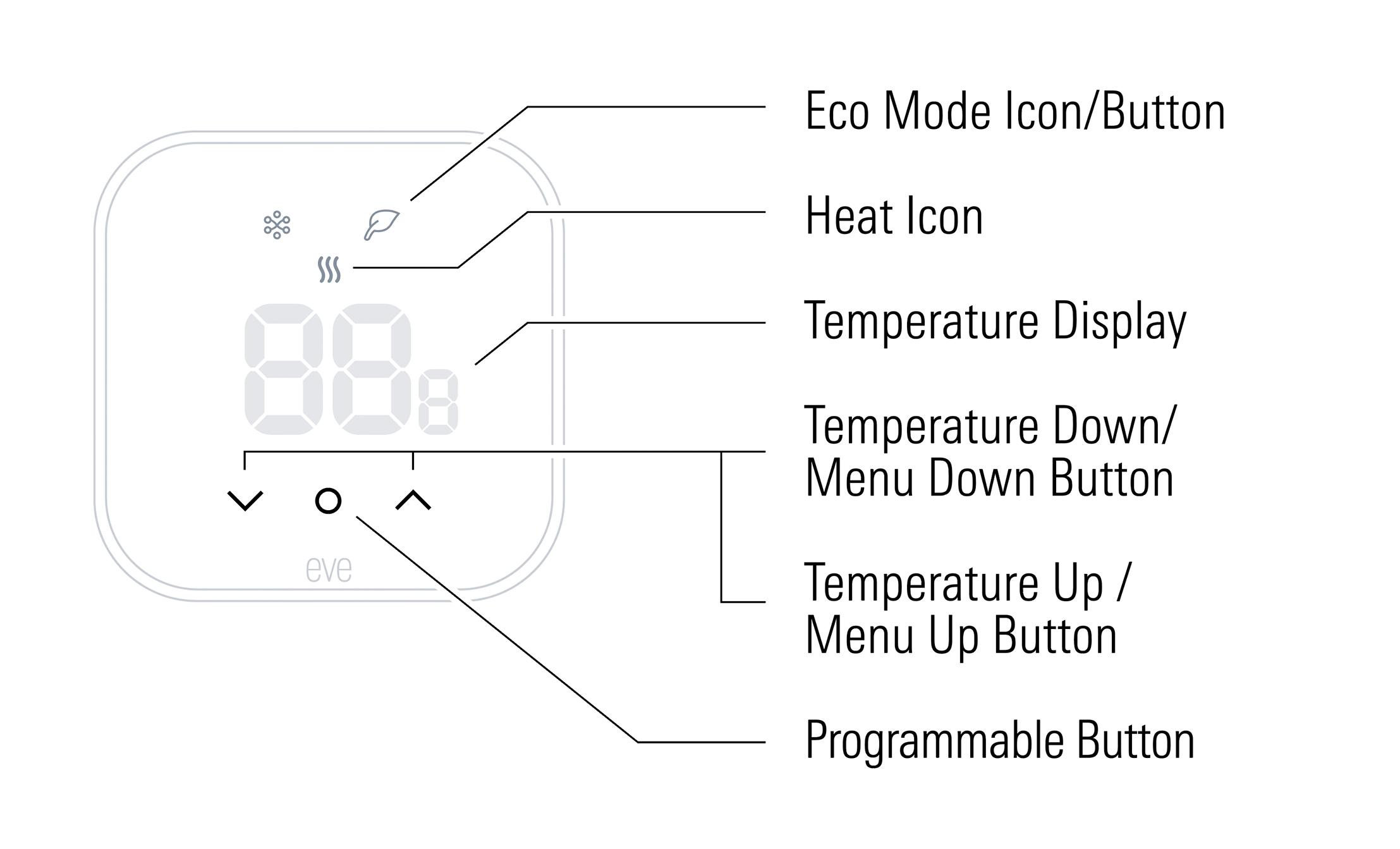
Depending on the settings in the Eve app, the displays and controls on the front panel will either remain lit or turn off automatically after a preset time. Tap the programmable button or one of the arrow keys to wake them up. The display will then show the room temperature. Tap an arrow button to switch to the current target temperature display. Tap again to manually adjust the target temperature. Once the new target value is displayed, confirm it by tapping the programmable button once. Eve Thermostat will confirm by flashing twice and then return to the room temperature display.
Select Operating Modes and Temperature Presets
Activate Eve Thermostat as described above. Tapping the programmable button switches the display to the current operating mode or the current temperature preset, depending on how the button is configured. Use the arrow keys to switch between operating modes (HE = Heat, – – = Off) or presets (HO = Home, nI = Night, A = Away, EA = Extended Away). Set the new mode or preset by tapping the programmable button once. Change the function of the programmable button by holding it down for about 5 seconds—OP indicates that the programmable button controls the operating modes, while PS stands for the presets.
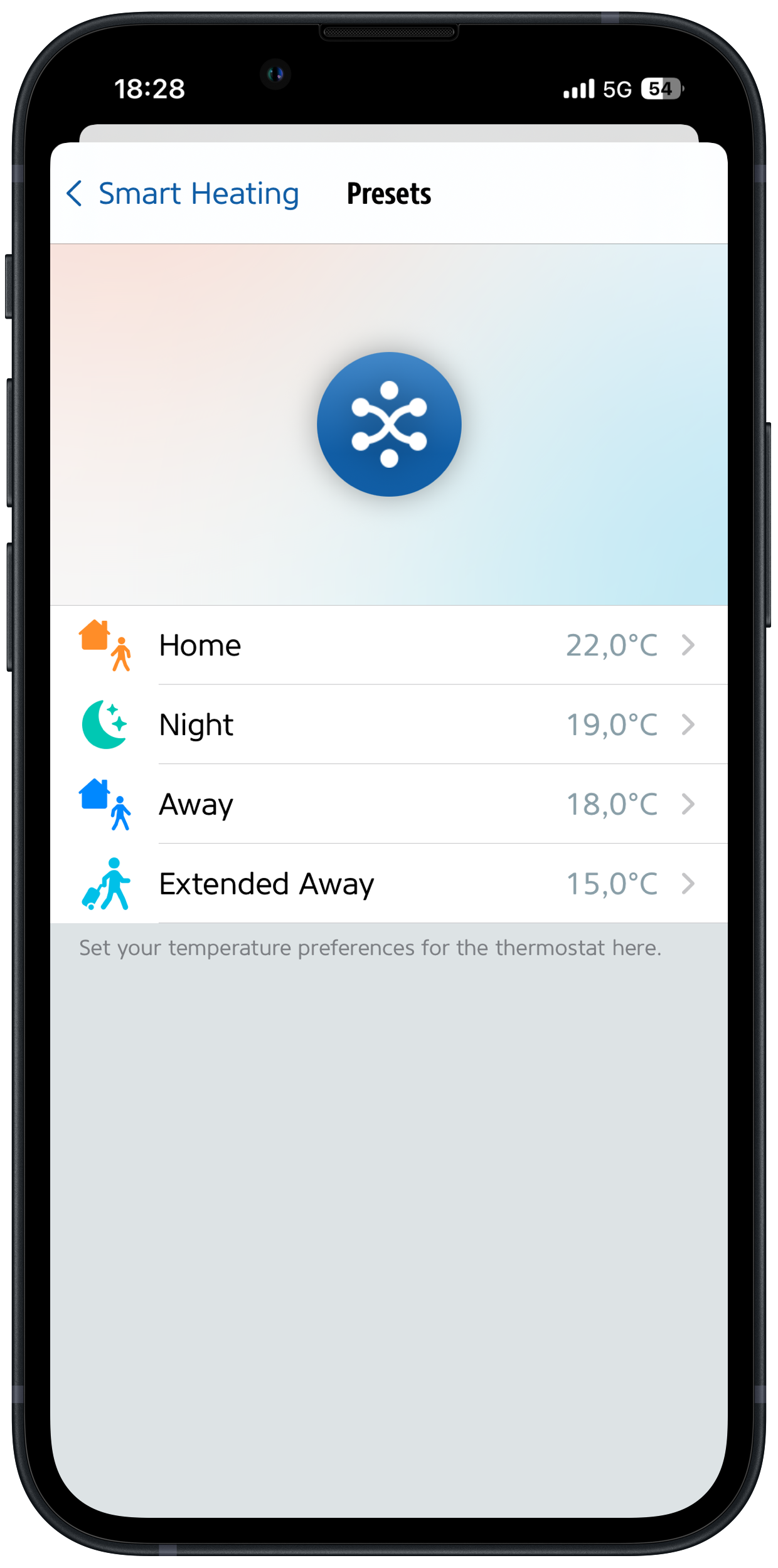
Configure Presets and Eco Temperature
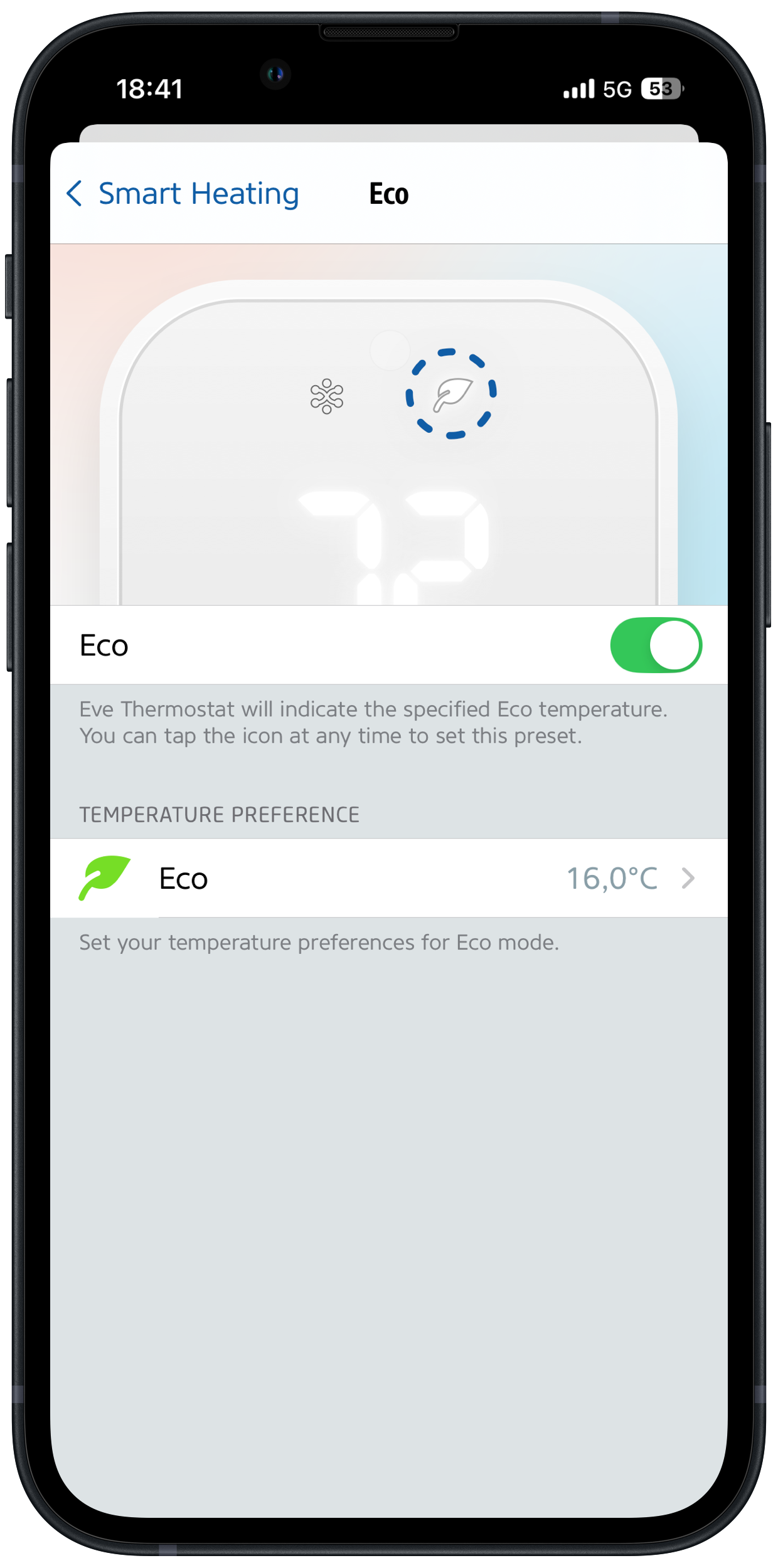
The "Home," "Night," "Away," and "Extended Away" presets are supplemented by another one — Eco. You can select it by tapping the Eco icon on the front of Eve Thermostat, which lowers the room temperature to an energy-saving level. This setting, like the values for the other presets, can be specified in the Eve app in the Eve Thermostat details view under Smart Heating > Settings.
Heat on a Schedule
A wall-mounted radiator heats up within minutes and can release heat into the room just as quickly. Your underfloor heating, on the other hand, must first bring the screed up to temperature, and that can take hours. The same applies in reverse—that is, when the system cools down after you’ve lowered the target temperature. Because of this thermal inertia, many underfloor heating systems simply run continuously, keeping the room temperature constant.
However, since lowering the average temperature by just one degree is said to save up to 6% in heating energy, a moderate, temporary reduction can make perfect sense—especially if it happens automatically. On weekdays, set the temperature in living areas one to two degrees lower during the day, with the adjustment triggered one to two hours before the last person leaves the home. In the afternoon or evening, reverse the process—depending on the size of the home, insulation, etc., this is what a schedule might look like for households where no one is home during the day on workdays. It’s important to take into account the thermal inertia of your system or the rooms and to allow for lead times for the temperature change—depending on the system, about one hour per degree: If you want it to be 18 degrees at 9:00 a.m., the schedule must start at 7:00 a.m.
Here’s how to program the Eve Thermostat: In the Eve Thermostat details view, under "Smart Heating," tap "Settings," then "Schedules." Tap an existing schedule to edit it, or select "Add Schedule." Tap a time period, then use "Add Temperature" > "Create New Temperature" to set a range of temperatures suitable for your rooms. Use the Based on Preset option to model the names and values of your custom temperatures after the presets, allowing you to activate them directly on the device.
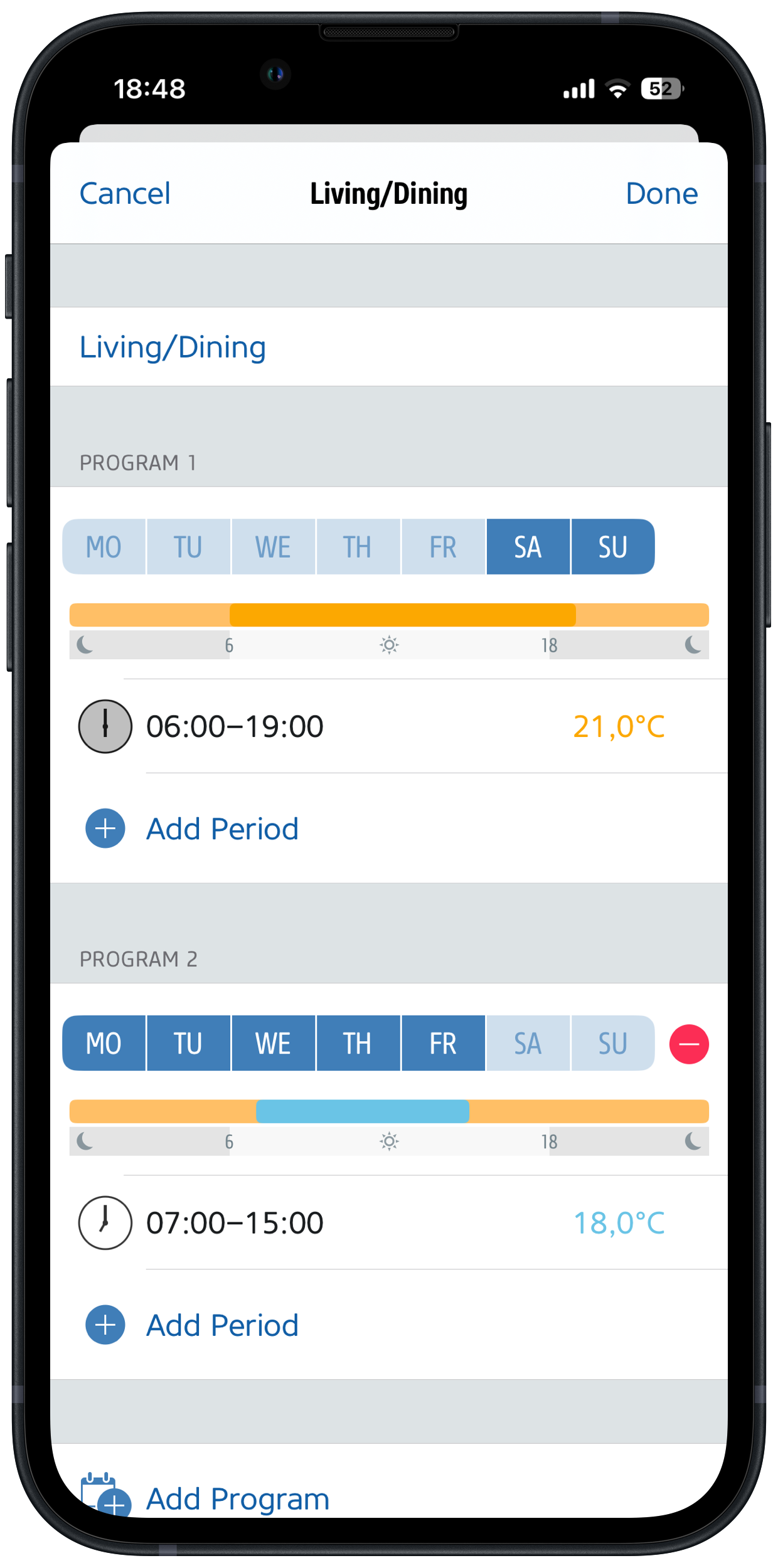
Example 1: Living/Dining Areas
On weekdays, when residents are away, the temperature should drop by one degree. On weekends, it should be one degree higher during the day and into the evening.
Program 1 covers Saturday and Sunday, when the temperature should be 21.0 °C from approximately 8:00 a.m. to approximately 9:00 p.m. Program 2 is active Monday through Friday and lowers the temperature from 7:00 a.m. to 3:00 p.m. This saves energy during the time between leaving (around 8:00 a.m.) and returning home (around 5:00 p.m.).
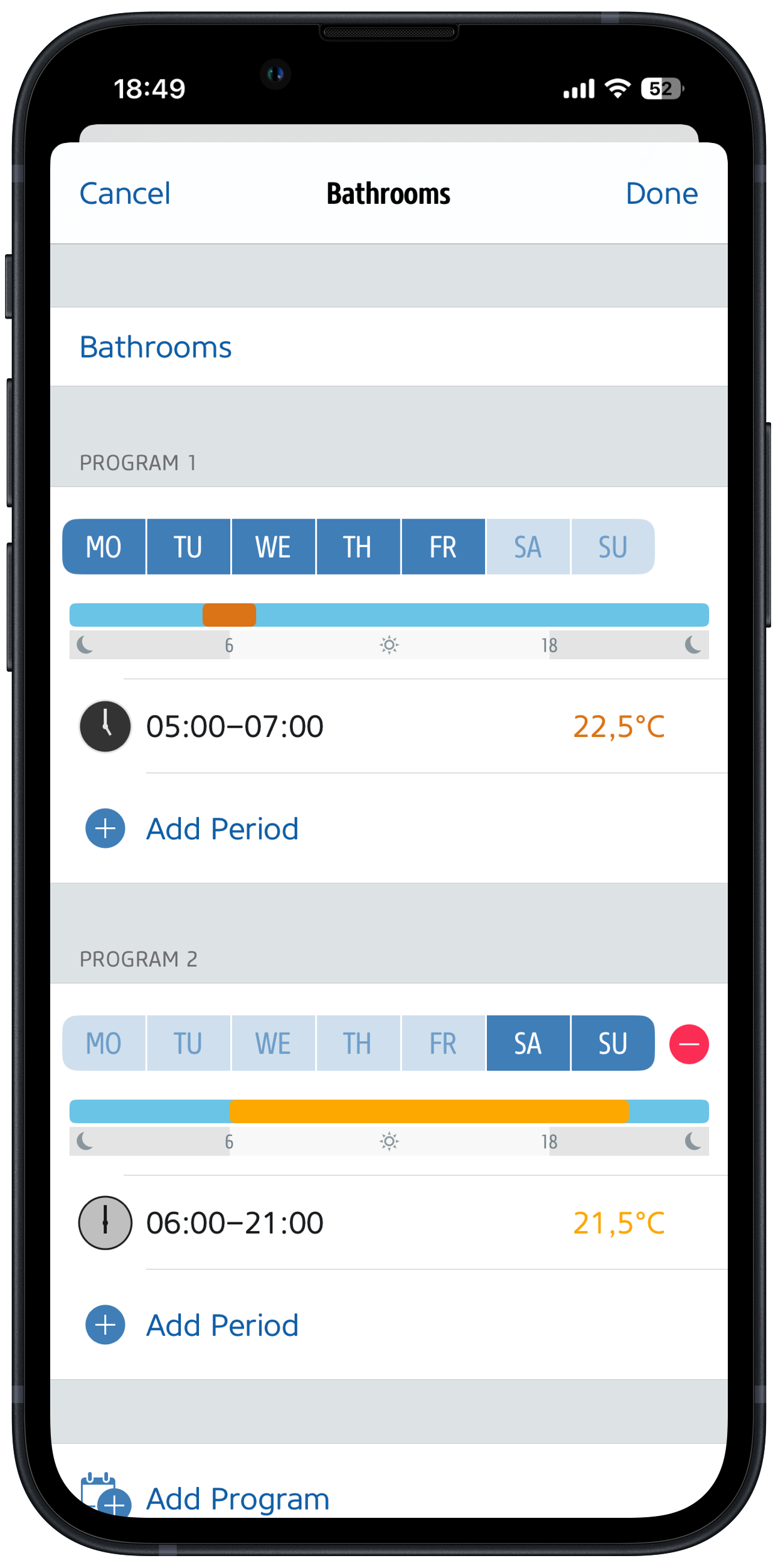
Example 2: Bathrooms
On weekdays, there should be a two-hour boost of two additional degrees in the morning. On weekends, the temperature should be one degree warmer. This is achieved by programs that set the target temperature to 22.5 °C from 5:00 a.m. to 7:00 a.m. Monday through Friday, and to 21.5 °C from 6:00 a.m. to 9:00 p.m. on Saturday and Sunday.
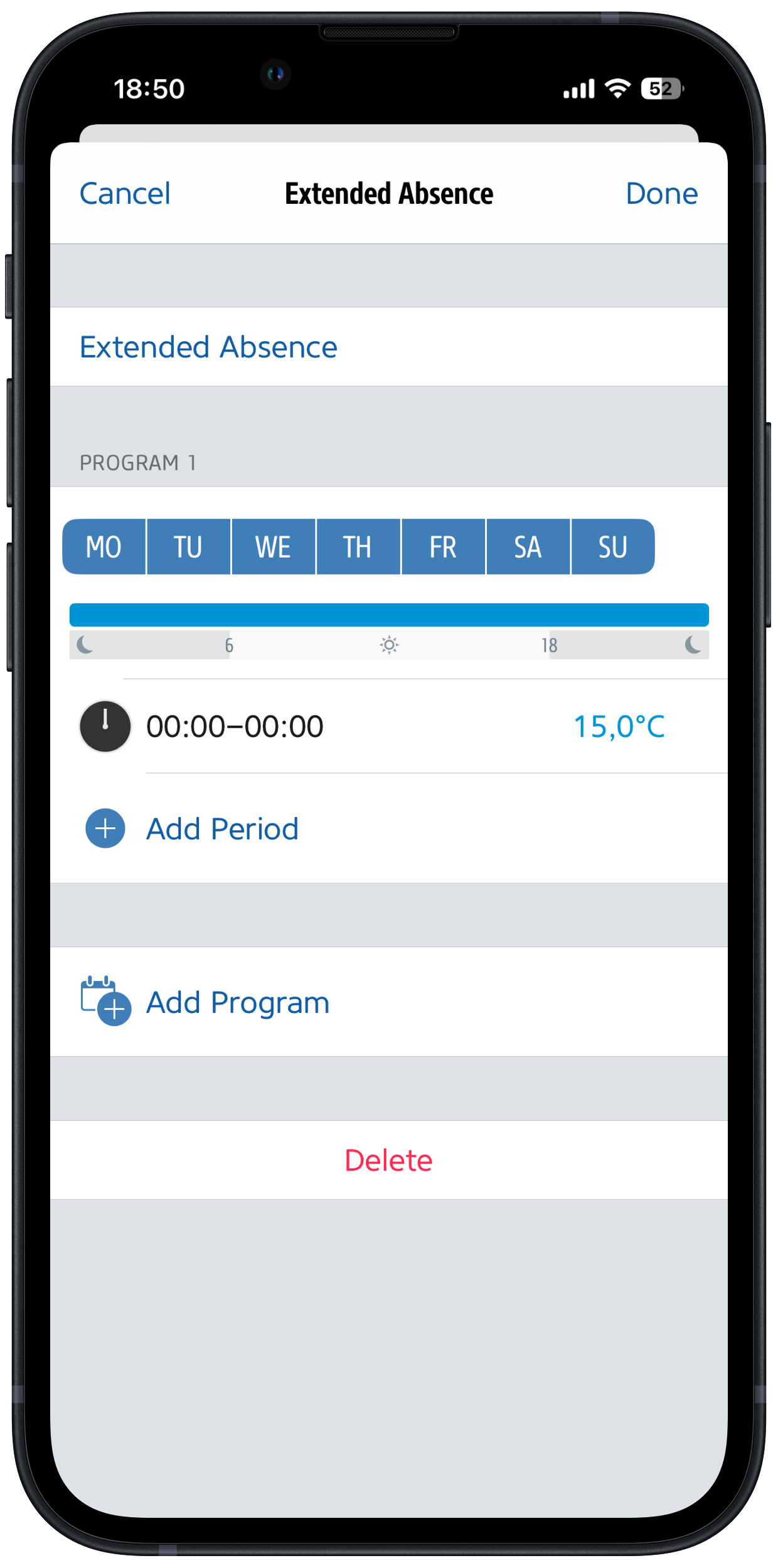
Example 3: Extended Absence
This schedule, designed for rooms that are rarely used or when residents are away for extended periods, permanently lowers the temperature to 15 °C. Note that raising the temperature back to a comfortable level from this point can be time-consuming and energy-intensive, so such a reduction should be used with caution.
Device Settings in the Eve app
You can open the list of device settings either by tapping the gear icon in the drop-down menu above the temperature display in Eve Thermostat's details view, or by selecting it under Settings > Accessories. Here, you can change the room assignment and device name, and set the temperature unit for the display. You can also configure how Eve Thermostat’s display should look and behave. LED Brightness lets you choose from three brightness levels or Auto mode, which uses a sensor to adjust the LED display to the ambient light. Turn LED Off controls how long the display stays on after you’ve interacted with the device. If you want to be able to check the room temperature at any time, select Always-On. Finally, in Button Assignment, you can specify which control options the programmable button should offer—Heat/Off or the presets Home/Night/Away/Extended Away.
Temperature Offset
Wall-mounted thermostats are typically installed in locations that allow the built-in sensors to accurately measure the room temperature. If, due to unusual room sizes or furniture arrangements, the temperature recorded by Eve Thermostat differs noticeably from the actual room temperature, you can compensate for this using the Eve app. To do this, open Settings > Accessories > [Eve Thermo] > Temperature Offset in the Eve app. Determine the value once the control is already running stably: Wait until the gray line under "Target Temperature" remains as flat as possible for two to three hours, and then compare the reading with a thermometer placed in the center of the room at table height. If the room is warmer than indicated, enter a positive value; if it’s cooler, enter a negative value.
Can Eve Thermostat also control the Eve Thermo smart radiator valve, for example, in a bathroom with underfloor heating and a towel warmer?
No, but you can coordinate the schedules for the respective heating systems so that, for example, Eve Thermostat maintains a baseline temperature at all times, while the Eve Thermo adds a few extra degrees during periods of heavy use—such as in the morning and late evening—for about two hours.
Can I use Eve Thermostat with the external temperature sensor, Eve Thermo Control?
No, currently Eve Thermo Control only supports Eve Thermo.
Does Eve Thermostat learn how quickly rooms heat up and cool down, and can it create profiles, etc.?
No, and this should be taken into account when creating schedules and programming temperature deviations. However, the native apps for the Matter platforms will gain additional AI-based features in the future that will allow them, for example, to predict when you’ll arrive home and adjust the heating accordingly.
Does Eve Thermostat also support boilers or heat pumps?
Only water-based 230-V underfloor heating systems that are switched via a Triac element or a classic relay are supported.
Requires iPhone, iPad or Android device and a compatible hub.



Requires iPhone, iPad or Android device and a compatible hub.

Requires iPhone, iPad or Android device and a compatible hub.

Requires iPhone, iPad or Android device and a compatible hub.